- Backlinks
- Tutorial
Anchor Text: Classify Your Incoming Link Sample
Editorial responsibility: SearchCub
Classify anchor text by preserving each incoming link’s exact wording, then grouping the loaded rows with rules you can repeat. You’ll finish with a dated worksheet that keeps the linking page, target page and missing values beside each category. Use SearchCub Backlinks to read the saved observations, then make the classification in your worksheet.
Anchor text is the visible wording of a link. Google recommends concise, descriptive wording relevant to the linked page and its surrounding context. That describes writing useful links; the categories below are a practical way to organize incoming wording already recorded for your site. Google’s link best practices.
We’ll use productiveblogging.com throughout. Its saved United States · English result, retrieved on October 7, 2026, contains 100 loaded linking-page rows from 8,540 reported matches, with the result marked as truncated. Those 100 rows are the material we can classify; the larger number describes the reported matches beyond this loaded sample.
1. Read the Anchor Field Alongside Its Pages
For your site, open Backlinks, choose Domain, enter your domain and select your Region, then click Research domain. If you already have a saved domain result, open Research history, use Open in workbench for that result and select Backlinks. Keep its retrieval date with your notes so a later saved result becomes a new observation rather than a replacement for the old one.
Find Who's Linking to My Site and read the Linking page and Anchor fields together. The linking-page entry includes the source address and a To destination address. Copy both addresses before assigning a wording category: the source tells you where the observation came from, while the target tells you which of your pages it points to.
The first Productive Blogging row records https://mitchteemley.com/ as its source and https://www.productiveblogging.com/avoid-blogger-burnout/ as its target. Its raw anchor value is null, which the saved result displays as Not supplied.
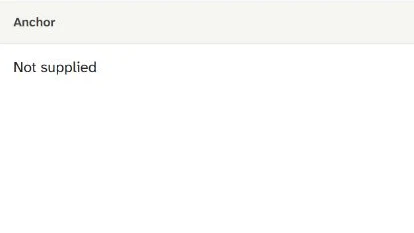
The Anchor field displays Not supplied for this saved row. Preserve the missing-value status instead of replacing it with guessed wording.
Make this your first completed row: exact source, exact target, missing value marked, category Not supplied. A null field does not establish an empty HTML link, an image link or missing image alternative text. Keep the observation as it arrived.
2. Keep the Raw Value and Your Category Separate
Start with the filled anchor-text worksheet. It contains 20 selected real rows from the same saved result, including a missing value, site names, a year-bearing credit, symbols and full addresses. These selected rows demonstrate the decisions; the all-row count later in this guide still uses all 100 loaded records.
The download has plain columns for the saved date, row number, linking page, target page, raw anchor, missing-value status, wording category, reason and source context. In Raw anchor, null marks a missing field and Missing value says Yes; supplied strings keep their exact text and say No. Keep that second column even if your spreadsheet displays a blank cell differently after import.
Row 2 pairs the Easy Peasy Foodie homepage with the Productive Blogging homepage and records Productive Blogging. Save the original capitalization and label it Site name. Row 13, from Semrush’s blogging-statistics page to Productive Blogging’s earnings page, records Productive Blogging, 2024; label that Site name plus other words so the year remains part of the observation.
If you want to sort similar spellings together, add a separate comparison column. For example, you could compare lowercase versions while retaining Productive Blogging in the raw column. Treat the comparison value as your sorting aid, and retain the original value for reading and checking.
Apply the same rule to addresses. Keep www, schemes, path capitalization, trailing slashes and query strings exactly as recorded. The selected Korean-language row points to a URL containing ?utm_source=chatgpt.com; preserve that target string in the worksheet rather than silently shortening it to the page path.
3. Use Wording Categories With Clear Boundaries
Choose one category for each row. The following rules describe literal forms in this sample, so another person can repeat the sorting without needing to guess the publisher’s intention.
Wording category | Rule and recorded example | Loaded rows |
|---|---|---|
Site name | The site name by itself: | 10 |
Site name plus other words | The name with additional wording: | 5 |
Domain label | A domain spelling without a scheme: | 8 |
Full URL | The anchor itself is a complete address beginning with a scheme | 20 |
Navigation or generic wording | An action or broad label: | 8 |
Symbol or reference marker | A supplied symbol string: | 2 |
Other recorded wording | Supplied text outside the rules above: | 33 |
Not supplied | The raw anchor value is null | 14 |
Total | Every loaded row has one category | 100 |
Check missing values first, then URL and domain forms, then site-name forms. This order helps keep a bare domain separate from a brand name and stops a long URL from being treated as ordinary descriptive wording. Use the final Other recorded wording group for supplied text that falls outside your explicit rules.
Row 5 records productiveblogging.com, while row 81 records https://www.productiveblogging.com/coschedule-requeue/. They belong in different categories because the anchor strings differ. The fact that every row also has a target URL does not make every anchor a URL.
Keep symbols as supplied text. Row 22’s period and row 68’s [[1]] each have a non-null anchor value, so both belong in Symbol or reference marker. Their short length is a reason to retain them visibly, rather than dropping them from the count.
Use a broad category when understanding the phrase would require more information. The selected German and Korean strings remain in their original characters under Other recorded wording. The same group contains HWMonitor: its target path mentions headings, but your immediate classification decision concerns the recorded string, so preserve it without adding a translation or semantic judgment.
Terms such as exact match and partial match require a target keyword to compare the anchor against. No target keyword has been established for these linked destination pages, so leave those categories unused here. You can describe a phrase precisely without assigning it a keyword-match label.
4. Reconcile the Whole Loaded Sample
Add the category counts before drawing conclusions from the table. Here the arithmetic is 10 + 5 + 8 + 20 + 8 + 2 + 33 + 14 = 100. Each row appears once, including the 14 missing anchor values; removing those values would change the sample you are describing.
Keep the original fields before adding categories, then count every loaded row. Save the total and unresolved source context with the dated worksheet.
Repeated wording deserves a closer count, not an automatic deletion. Nineteen of the 20 full-URL rows come from different recorded tag-page addresses on beyondmycv.com and carry the same Productive Blogging holiday-blogging address. The other full-URL row is the BlogOn UK scheduling-tools source pointing to the CoSchedule ReQueue page.
Keep all nineteen tag-page rows in the 100-row summary. If you add a group note, write “same source host and anchor, different recorded source URLs.” That gives you a useful explanation for the category count while preserving each source address for later reference.
A row count measures recorded observations, so use backlinks versus referring domains when you need to compare links with distinct sources. This worksheet’s counts describe wording within the loaded sample, not a recommended anchor mix. Save the denominator beside the table so “20 full URLs” always means 20 of these 100 rows.
5. Save What You Know and What Still Needs Context
Use Unknown for current source context in every selected row in this example: the exact referring-page placement was not inspected. Checking a destination page does not confirm the wording or placement on the page linking to it. This distinction lets you finish the literal classification record while keeping the next question clear.
For example, the saved record includes a destination-only retrieval for the CoSchedule ReQueue page. Row 81 can still say Full URL, because that describes its recorded anchor; its source-context cell remains Unknown. Keep any destination observation in a separate note, rather than treating it as a source-page check.
Before you save your version, work through this short checklist:
Every row retains its exact linking-page and target-page addresses.
Each supplied anchor keeps its capitalization, punctuation and original characters.
Missing values have both the
nullmarker and an explicit missing-value status.Each loaded row has one category, including repeated strings and missing values.
Category counts add to the loaded row count, and the reported-match total stays separate.
The retrieval date and source-context status remain beside the completed record.
Save a dated copy once these checks agree. On a later visit, add a new dated observation in a new column or a new sheet; retain the earlier raw value so you can see which record each classification used. Make the manual category decision in your worksheet rather than treating the product’s Anchor field as a ready-made classification.
For the wider site picture, continue with checking website SEO performance. If your next job is choosing wording for links within your own site, internal links for SEO covers that separate writing task.
Your next action is to open Backlinks for your domain, copy one loaded row’s source, target and Anchor into the worksheet, and assign its literal category before moving to the next row.