- On-page SEO
- Tutorial
Image Alt Text: Choose Words That Match the Image
Editorial responsibility: SearchCub
Write image alt text for the image's job on that page: convey information, name an action, or stay empty when it adds nothing. By the end, you will have a decision for each image and a way to check the saved result. Start with SearchCub's Page checks, then look at the actual pictures and their surrounding text.
Our worked example is Productive Blogging's blogging-income survey page, checked on 6 October 2026 with United States selected in SearchCub. The page has a home-linked logo, a cover repeating the article's subject, an income chart, and a course image that acts as a link. These are proposed editorial choices from a read-only public-page inspection; they have not been applied to Productive Blogging.
Step 1: Read the image check, then open the page
Open Page checks, choose Page, paste the full survey URL, select United States under Region, and click Search (the Research page button). The result opens with the Page checks tab selected. Find Images have alt text and read its status before deciding what to inspect yourself.
For this page, that row says Passed. The overall result also reports 0 to fix · 0 to review · 9 passed. Treat the image row as a starting point: your next job is to decide whether the text matches each image's purpose.
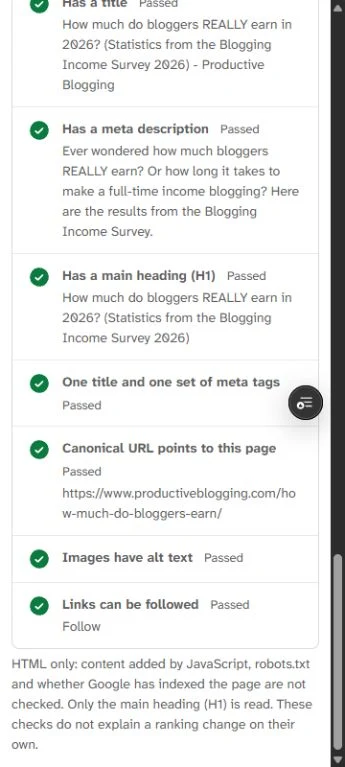
The image-alt row says Passed, with the HTML-only scope directly below it. Continue to the real page to judge what its pictures and links communicate.
Page checks reads HTML and does not inspect content added by JavaScript, robots.txt, or Google indexing; a passed image row is not an accessibility certification. It also does not give you an inspectable list of images or choose their descriptions. Open the public page alongside your notes and review the images manually.
On your own site, start with the image in the article, then check any logo or promotional image that links somewhere. Record a location such as “header logo” or “first chart under the blog-age section,” so you can find the same item in your editor. Match the real loaded image rather than a temporary lazy-loading placeholder, and treat a normal image and its no-script fallback as one editorial item when they represent the same picture.
Step 2: Choose the purpose before the wording
Ask what a reader loses when the picture is unavailable. If they lose information, supply that information in words. If they lose a way to navigate or act, name the destination or action. If the nearby text already supplies its meaning and it has no separate function, consider an empty alt attribute.
This follows the W3C image decision tree, checked on 6 October 2026. Apply the choice in context: the same picture can need different text when used as an article illustration and as a link.
Image on the survey page | Its job here | Proposed decision |
|---|---|---|
Header logo linking home | Navigation | Name the homepage destination |
Unlinked article cover | Repeats the subject already introduced | Consider empty alt after checking for unique information |
First income-by-blog-age chart | Communicates categories, values, and a comparison | Preserve its complete data alternative |
Online Course Jumpstart image link | Opens a course page | Give the link a destination name |
Use the filled image-alt decision sheet while working. It includes these actual image locations, observed attributes, proposed choices, and checks to perform before changing anything. Replace the page URL and image locations with your own, keeping a reason beside every “retain” or “change” decision.
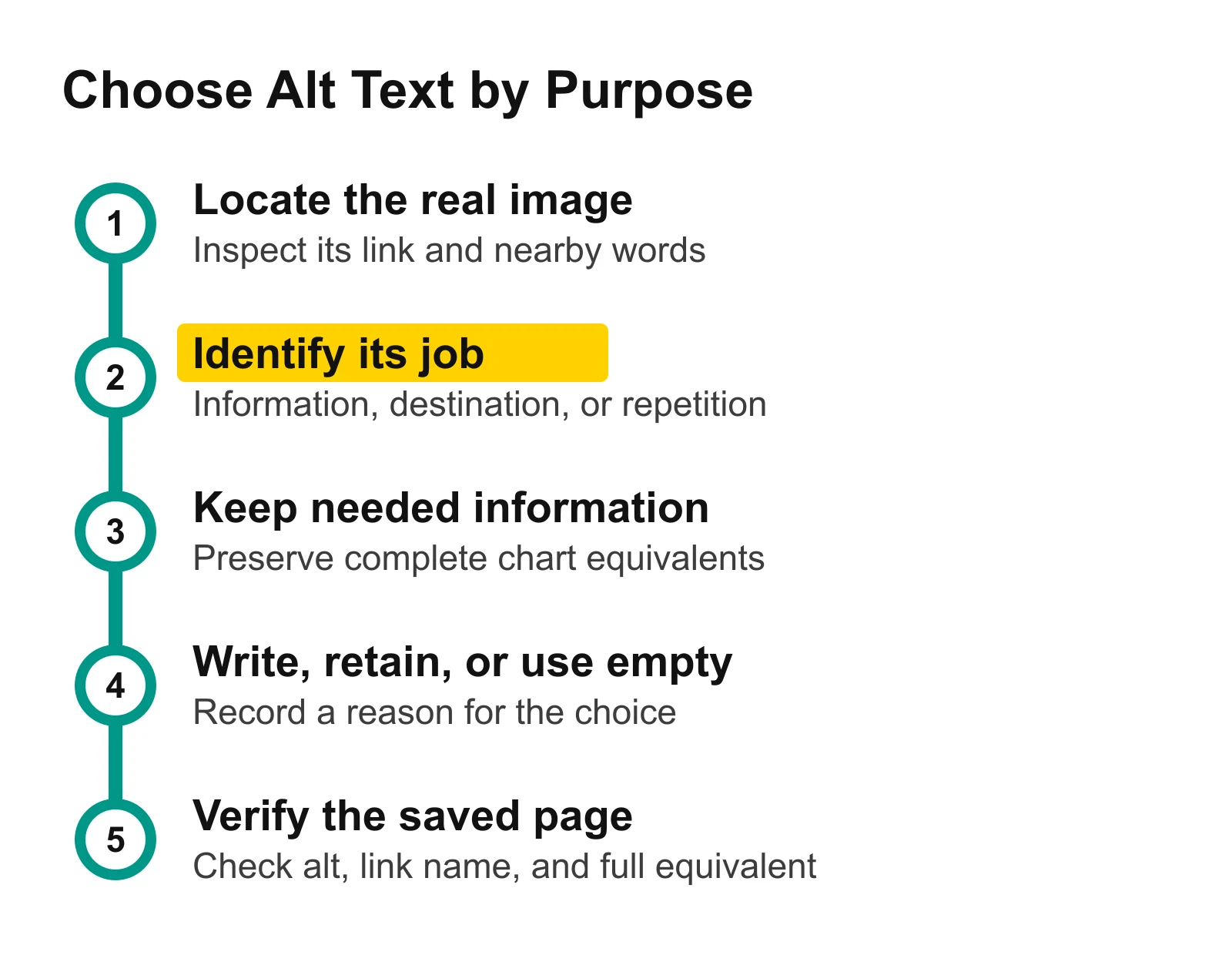
Decide the purpose before writing a sentence. The final check is the saved page, so a sensible choice in your notes still needs verification in your editor and browser.
Step 3: Name where a linked image takes you
The header logo's existing alt text describes a logo version. Its link returns to Productive Blogging's homepage, so the proposed wording is Productive Blogging home. That describes the useful outcome of activating the image.
The course promotion presents a different choice. Its loaded picture shows the Online Course Jumpstart product, and its destination resolves to the course page with that name. The inspected image-only link has an empty alt attribute and no accessible name in the current rendered page, so Explore Online Course Jumpstart is a proposed destination name.
The nearby heading about creating a course sits outside that link. Seeing a heading above a picture does not automatically give the link the same name. Check the link itself: does it contain useful text, use the image's alt text, or have an explicitly associated label?
W3C's functional-image guidance, checked on 6 October 2026, explains this destination-first choice. If a logo shares a link with text that already names the destination, an empty image alternative can avoid repeating that text. Here, the important distinction is whether the useful wording belongs to the same control.
Apply the same question to your image: “Where will this take me?” Avoid describing a laptop, a book mockup, or a logo file when the reader needs the destination. The internal-links guide helps you choose useful destinations and descriptive link wording elsewhere in the article.
Step 4: Use empty alt only for a reason
The survey cover contains the article's topic and survey framing, plus desk props and the site address. The surrounding heading and introduction already communicate what the article covers. In this placement, an empty alternative is a proposed option if that picture adds no information the reader needs beyond the nearby text.
That is a decision about this cover in this article. A cover carrying a unique quotation, an instruction, or a labeled comparison would require another choice. Compare the actual words and graphics with the nearby prose before deciding they repeat it.
An intentional empty attribute is alt=""; omitting the attribute is a different state. In your editor, check whether marking an image decorative actually saves the empty attribute. Leaving an alt field blank may behave differently across editors and themes.
Keep the reason in your sheet: “unlinked cover; subject already explained by heading and introduction.” That makes the choice easy to revisit when you move the image. If you later turn the cover into the only content of a link, review the destination name as well.
Step 5: Keep the chart's information available
The first chart compares average monthly income across blog-age groups. Its current alt text already includes the title, both axis labels, and all five category/value pairs. Retaining that data-bearing alternative is the immediate decision; replacing it with “blog income chart” would remove information.
The useful improvement to consider is a short identifying description plus a complete, nearby text equivalent. W3C's complex-image guidance, checked on 6 October 2026, supports providing essential chart information in a longer description, including values and meaningful relationships. Make that equivalent real page content before shortening the existing attribute.
For this chart, a proposed equivalent would identify the horizontal axis as blog age and the vertical axis as average monthly income in USD, then preserve the values below. In the displayed survey results, the older groups have higher averages. These figures describe this chart's survey groups, not an income forecast for your blog.
Blog age shown in the chart | Average monthly income in USD |
|---|---|
Under one year | $4.44 |
One to three years | $100.35 |
Three to five years | $746.73 |
Five to ten years | $2,325.62 |
Ten years or more | $7,060.72 |
This table is a proposed text equivalent for the worked example; the fetched source page has no HTML table. If you add such an equivalent to your own chart, place it beside the image or under a clearly named nearby heading. Then an alt such as Average monthly income by blog age in the 2026 survey; full values follow can point to content that actually exists.
For a different chart, include any other detail needed to understand it: units, series labels, an important change, or a meaningful sequence. A shorter attribute is useful only when the information remains available. Read the prose and table without looking at the graphic and check whether you can still make the comparison the article asks you to make.
Step 6: Check what your editor saves
On your own page, enter the chosen wording in the image's alt-text field, or use the editor's decorative-image setting where appropriate. Save the page and inspect the resulting image element in your browser. Compare the emitted alt value with your decision sheet, including an intentional empty value.
For linked images, inspect the surrounding link and its accessible name in the browser's accessibility panel. Check that it names the intended destination, and use the keyboard to confirm the control takes you there. For a chart, confirm the full equivalent remains visible, readable, and associated clearly with that image.
Run Page checks again after saving a change to your own online page. Use its HTML result alongside your manual review, keeping the purpose, wording, and chart-equivalent checks in your sheet. If a repeated logo or promotion appears in several layouts, check the version readers actually encounter on desktop and on a phone.
Google's image SEO guidance, checked on 6 October 2026, recommends useful descriptions in context and warns against stuffing keywords into alt text. Use the words needed to understand the image; adding your target phrase repeatedly is not a substitute for describing its job.
Your next step
Open Page checks, choose Page, and enter one article URL from your site. Read Images have alt text, then fill the decision sheet for the first informative image and the first image-only link you find. Finish with a decision to retain, rewrite, use empty alt, or add a full equivalent before shortening anything.
For the wider order of work, use the website SEO performance guide. Once the images do their jobs, the SEO titles and meta descriptions guide helps you make the page's search preview equally clear.