- Keyword Research
- Tutorial
How to Do Keyword Research for Ecommerce
Editorial responsibility: SearchCub
To do keyword research for ecommerce, match searched products to what your store sells, check the pages shoppers need, and improve an existing destination that can answer the search. You will finish with a small store map: the keyword group, the real products it describes, the page to work on and any question still open. Use SearchCub's Keyword ideas to find the wording, then inspect selected results before assigning a page.
Our example is OXO's cold-brew range. OXO has a Cold Brew Coffee Maker, a separate Compact Cold Brew Coffee Maker, and a broader Coffee Makers & Grinders category. The catalog pages were checked on October 5, 2026, and the model-specific help pages on October 6. We used United States keyword ideas retained from October 4, with selected search results checked on October 6.
Download the filled store keyword map to follow the decisions. SearchCub's figures are estimates for the selected country, not OXO's analytics or sales.
1. List the Actual Products Before the Keywords
Start with the product pages open. Record each item's exact name, identifier, category and help destination. A search for a brand is not always a search for one item, and a shared product noun does not make different models interchangeable.
The standard OXO brewer has SKU 1272880; the compact model has SKU 11237500. Those identifiers keep the two items separate when the wording gets loose. Both belong to the coffee equipment range, but the category also contains grinders and other products.
For your store, add the attributes that change a purchase: model, size, material, intended use or compatible equipment. Use what your product page actually establishes. If you sell several sizes, keep the variants visible in your notes rather than treating a keyword's size modifier as decorative wording.
Separate the item from the page that lists it. The OXO category helps people browse a broader coffee range; a product page provides the details of one brewer. You now have the first constraint for research: a broad range and a particular item are different destinations, even when both contain cold-brew products.
Decide: which actual range you are researching and which product distinctions the map must preserve. Here, preserve both OXO models.
2. Find the Store's Wording in Keyword Ideas
Open Keyword ideas, keep Keyword selected, enter cold brew coffee, choose United States in Region, and click Search. Our retained result contains 100 loaded ideas. Read the Keyword set and its Monthly searches, Difficulty and intent tags.
Monthly searches estimates how often a phrase is searched in the chosen country. Difficulty is an estimate of organic competition. Use these to choose rows worth inspecting, after checking whether their wording fits the products.
The set includes cold brew coffee oxo, with 8,100 estimated monthly searches and difficulty 5. Beside it, View 4 related keywords for cold brew coffee oxo reveals these loaded wordings:
cold brew coffee oxooxo cold brew coffee makeroxo cold brew makeroxo good grips cold brew coffee maker
Keep them together in your map. The related pane supplies difficulty values for the individual wordings, but it supplies no separate monthly figures there. Record the displayed 8,100 for the main row rather than inventing figures for the other phrases or adding them together.
That gives you a shopping group, not four new pages. The group still needs a catalog check: its wording names OXO without clearly separating the standard and compact brewers.
Decide: retain the related wording together, then investigate which real products and pages the group describes.
3. Check the Two Models in the Search Results
Click cold brew coffee oxo to open Keyword analysis. Check the query and Region before reading SERP overview. The selected analysis shows the Transactional tag, 8,100 monthly searches and difficulty 5.
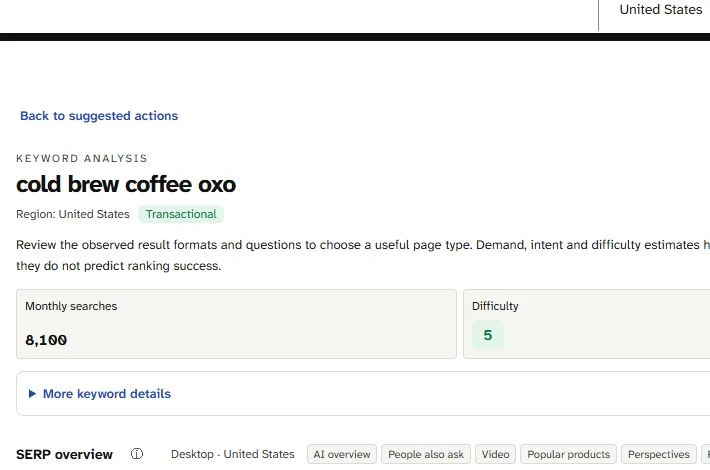
Read the Transactional tag beside the United States region, then the 8,100 monthly searches and difficulty 5. This is a shopping group worth inspecting against the two real OXO models.
In the October 6 desktop results, the first organic result is OXO's standard brewer product page and the second is its compact product page. Other supplied results include a model-comparison discussion, a retailer's compact-product page and reviews of OXO equipment. The displayed positions describe this dated result, not a permanent order.
Open the real product pages and compare their identities with your notes. The two official results establish two legitimate items. Combining related search wording does not justify combining their product pages or sending a compact-model buyer to the standard item by default.
For this map, keep both existing product destinations. Use the standard product page as the first page to review, while keeping the compact option explicitly connected. That preserves the different items and gives a shopper a route to the other model when the broad brand wording has left their choice unresolved.
The keyword-grouping guide explains how to group equivalent phrases. The extra store decision comes afterward: does the group describe one item, several actual items, or a choice your current page leaves open?
Decide: retain the two product pages and plan clear model selection between them; create no extra pages for the four wordings.
4. Test a Broader Shopping Query Against the Category
Next, open top-rated cold brew coffee maker from the same set. Its current analysis shows 3,600 monthly searches, difficulty 4 and Commercial intent. Scroll to SERP overview and read the result titles and destinations.
The supplied October 6 result mixes comparison and community pages, reviews, a Bed Bath & Beyond cold-brew collection and an Amazon product. A Commercial tag therefore leaves several possibilities to inspect; it does not automatically assign the phrase to your category page.
Compare that task with OXO's actual Coffee Makers & Grinders category. It contains the two cold-brew models alongside grinders and other equipment. It provides broader browsing, while the query asks someone to judge cold-brew makers.
Keep this phrase on hold for that existing category. Before using it as the category's main target, check whether the page provides the choice and comparison the inspected result calls for. Adding “top-rated” to the category heading would not supply those criteria.
A store could offer a useful comparison of its own range when it has the material to do so. In this example, the next investigation is the scope of a comparison between the two real models; a tested comparison across other brands would need different evidence. The search-intent guide covers the general format choice.
Decide: keep the broad category as a real destination, but hold this commercial keyword assignment until its page can satisfy the comparison task.
5. Connect Each Product to the Correct Help Page
A store map also needs the answer after the purchase. Follow each product's instructions or help links and read the page itself. A guide's URL can sound broad while its body belongs to one particular model.
OXO's compact-model use guide explicitly sends full-size users to its standard-model guide. The compact instructions start draining when the brewer is placed on the carafe. The standard instructions use a brew-release switch.
Preserve that distinction in the map's help column. Link the standard product to the standard guide and the compact product to the compact guide. Putting one general instruction link beside both models would hide a difference that changes what the customer does.
These are existing help destinations checked for the product group, not separately measured model-instructions keywords. They support the shopping page's next step without requiring a new guide for every product wording.
Now check related parts. OXO's paper-filter accessory, SKU 11147200, is linked from the standard brewer. Its description presents paper filtration as an extra layer alongside the brewer's mesh filter. Compatibility with the compact model or another brand remains unknown in the inspected sources, so hold those fit assignments until the correct specification confirms them.
Decide: assign the two real help pages by model and leave unsupported part compatibility unresolved.
6. Finish the Map and Keep Uncovered Rows Visible
Bring the product, category and help checks into the same sheet. Give each group an actual destination or a clear reason to wait. Include the constraint that changed your decision, so the next person can understand it without repeating every search.
Loaded search group | Catalog and page check | Action |
|---|---|---|
OXO shopping wording, led by | Two real models appear in the selected result; each has its own product and use page | Review the standard product first, connect the compact option, and preserve separate help routes |
| The available category spans makers and grinders; the result mixes comparisons, reviews and retail destinations | Hold it as the category's main target until the choice/comparison task is supported |
| The loaded row names another brand, outside the two OXO models inspected | Leave it uncovered by this example; verify your own catalog before choosing a destination |
The Ninja row shows 9,900 monthly searches and difficulty 8 in the retained set. Its bigger monthly figure does not make it a target for either inspected OXO product. Marking it uncovered records the boundary of this example; it does not claim to describe every item the wider store sells.
The downloadable map includes these groups, the exact candidate URLs, the model-specific help routes, the proposed action and unresolved checks. Replace the example's products and URLs with your own before using it for a store change.
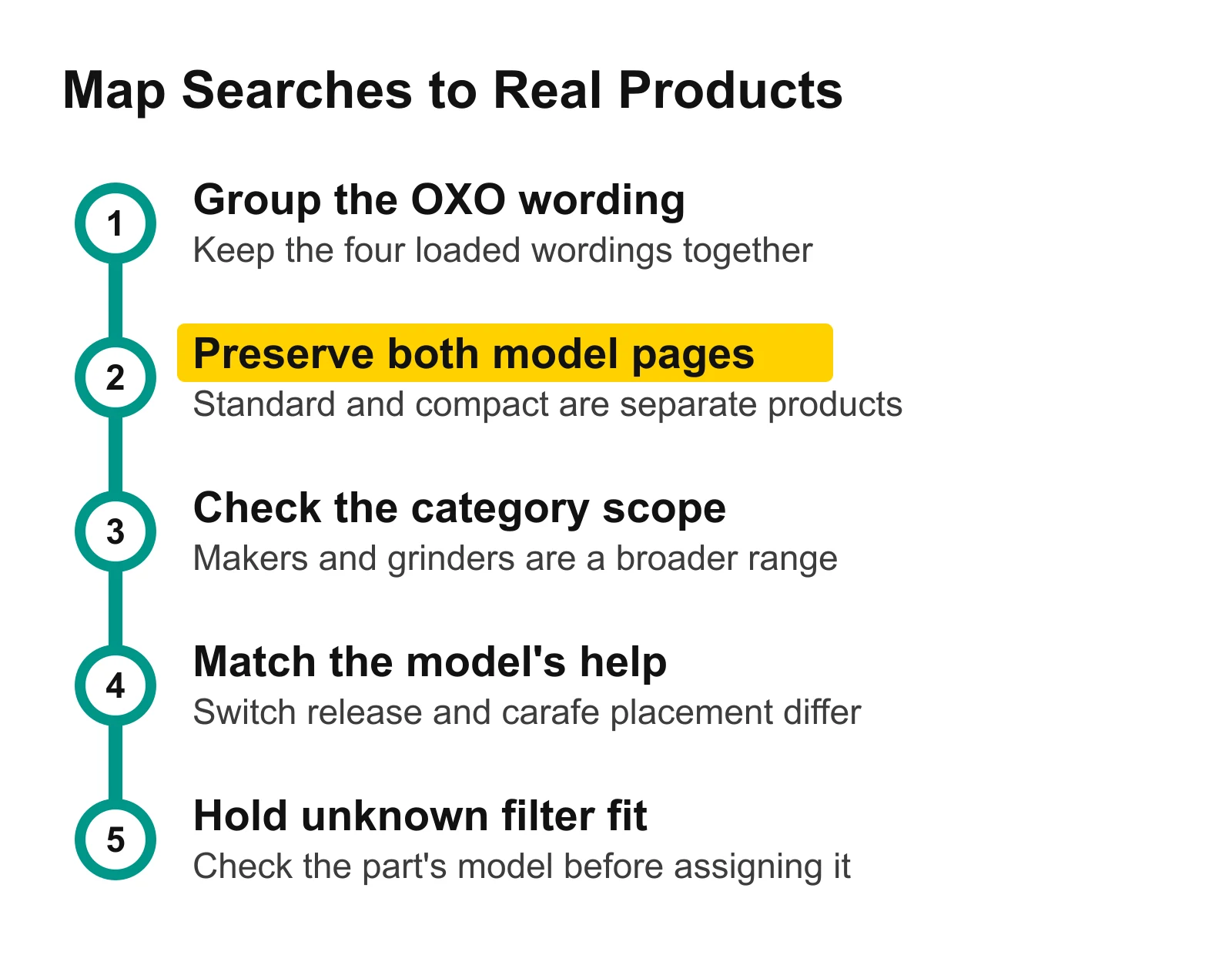
Follow the OXO group through the model check before choosing a page. The category and help checks preserve different shopper tasks, while the final station keeps unverified filter fit on hold.
7. Choose One Existing Page to Improve First
Start with the branded OXO group. It describes actual products, and the inspected result shows both official model destinations. The first job is a clear route through those existing pages, rather than a new article repeating the shopping phrase.
For the standard product page, write this improvement brief: make the model identity easy to find, provide a descriptive link to the compact option where a buyer needs to choose, and place the standard use-guide link beside the instruction route. Keep the compact product and its own guide intact. This is a proposed page improvement drawn from the map; no store page was changed.
For your own store, finish the same brief with the actual URL, the shopper's unresolved choice and the correct next destination. Choose a change you can check by following the page as a customer. A clear model choice and a working route to the right instructions are more concrete than “add more keywords.”
Open Keyword ideas, type the product range you actually sell, choose your Region, and click Search. Pick one relevant shopping row, open its analysis and compare the products behind the first useful results with your own product pages. Finish its row in the map before researching another.
Where to Go Next
Keyword research for bloggers: choose the next supporting article once the store's product and help tasks are clear.
Search intent: inspect the result format when a purchase phrase could need a comparison, category or product page.
Group keywords and map them to pages: keep equivalent wording together before deciding which actual page should answer it.