- On-page SEO
- Tutorial
Table of Contents SEO: Plan Useful Section Links
Editorial responsibility: SearchCub
A useful table of contents links to answers a reader may want to reach directly, with a working target for every entry. You will finish a short plan that pairs each selected answer with its link label, section target and checks to run after saving. Use SearchCub Page analysis to start with the searches associated with one existing article, then read its sections before choosing the jumps.
Our example is Productive Blogging's keyword-research guide. We use its retained United States page-query estimate from September 21, 2026, and public sections checked on October 8. The output is a proposed navigation plan for that real article, which you can adapt to a page you control.
Start With the Questions the Page Already Serves
Choose an existing long article with several distinct answers. A contents list is useful when someone may need one answer without reading every preceding section. It need not reproduce every heading or introduce more subjects to make the list longer.
Open Page analysis, choose Page, and enter the full address of the article. Set Region to its intended market and submit the page search. For this example, use https://www.productiveblogging.com/keyword-research-for-bloggers/ and United States. In Overview, read the keyword table as a set of clues about the questions connected with that exact page.
The retained result includes how to do keyword research for blog at 70 estimated monthly searches and how to do keyword research for blog posts at 40. Monthly searches estimates how often a phrase is searched in the selected market in a month. Both wordings suggest a reader who wants the research procedure, so begin by looking for one suitable procedural answer.
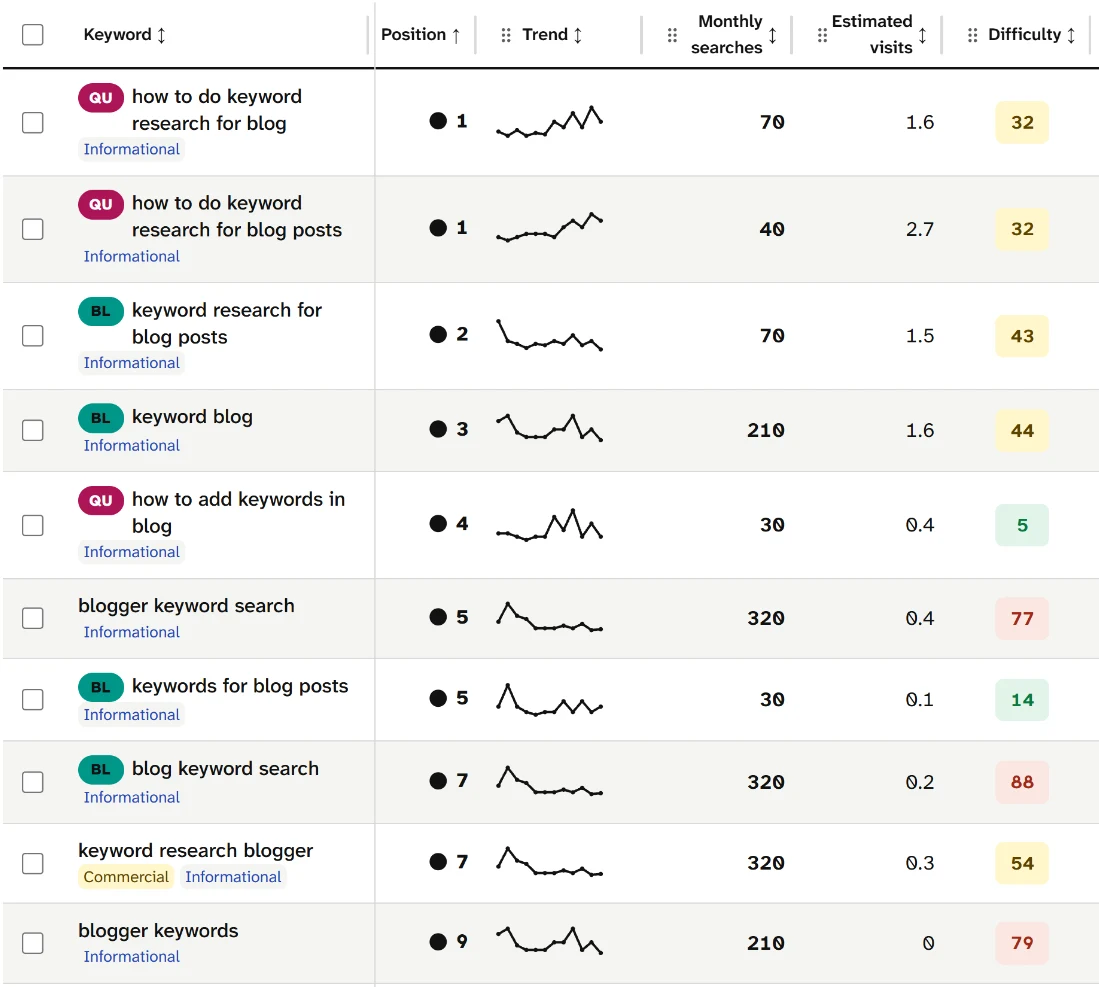
The first two rows describe closely related research tasks, with 70 and 40 estimated monthly searches in the United States. This September 21, 2026 sample supports examining one shared procedural destination rather than creating two nearly identical contents entries.
Other recorded phrases concern research tools and tips. Copy the useful wording into your notes, then open the article and check what it actually answers. A search phrase earns a place in the plan only when you can name the destination that fulfills it.
These are dated search estimates, not the publisher's analytics or counts of contents-link clicks. Page analysis supplies the query sample; choosing targets and testing the jumps are manual work. We have not added navigation to this third-party page or measured a ranking or usability change.
Choose a Small Set of Distinct Answers
Match each proposed entry to a section you have read. In the Productive Blogging guide, the general procedure, free options, paid options and common pitfalls have separate answer sections. That gives us a selective plan rather than a copy of its full heading hierarchy.
Recorded wording | Existing answer section | Proposed contents label |
|---|---|---|
| How to do keyword research | Start the research steps |
| Free keyword research tools | Free research options |
| Paid keyword research tools | Paid research options |
| Common mistakes with keyword research | Common pitfalls |
The two instructional phrases share an entry because they lead to the same general procedure. Making separate links for each spelling would give the reader two choices with the same outcome. Separate free and paid options because the existing article gives them distinct destinations; this is a navigation decision, not our endorsement of its tool recommendations.
Keep the proposed label close to what the destination provides. “Common pitfalls” tells the reader what kind of advice follows. A broad “Tips” label is less specific, while a promise such as “The best tools for your business” would add a claim the navigation plan has not established.
Leave wordpress blog keywords unassigned. The retained query sample contains that phrase, but our selected sections do not establish a specific WordPress answer. Adding a WordPress-labelled jump to a general section would make the list promise more than the destination supplies.
Also keep the existing 12 Comments control separate from the answer list. Joining a discussion is a different action from reaching the procedure or comparing research options. A selective contents list can omit a valid link without removing it from the page.
Give Every Selected Answer One Stable Target
Pair each contents label with one target before editing the page. The fragment is the part after # in a section link; its target is the matching identifier on the page. For this plan, we propose these pairs:
Proposed label | Proposed target ID | Proposed link fragment |
|---|---|---|
Start the research steps |
|
|
Free research options |
|
|
Paid research options |
|
|
Common pitfalls |
|
|
Use short identifiers you can maintain. Our choices describe the answer, contain no spaces and avoid tying the target to a step number that could change when the article is edited. That naming pattern is a practical choice, not a ranking technique.
The HTML standard requires an identifier to be unique within its element tree and contain no ASCII whitespace; it also describes IDs as targets for document fragments. Check the whole saved page for an existing use before assigning a new value. Two answer sections sharing an ID would leave the plan without an unambiguous destination.
Write descriptive link text. Google's link guidance recommends concise, relevant anchor text and links built with an anchor element and an href. W3C's link-purpose guidance explains why the destination's purpose should be understandable from the link text or its context. “Free research options” makes a clearer choice than “Click here.”
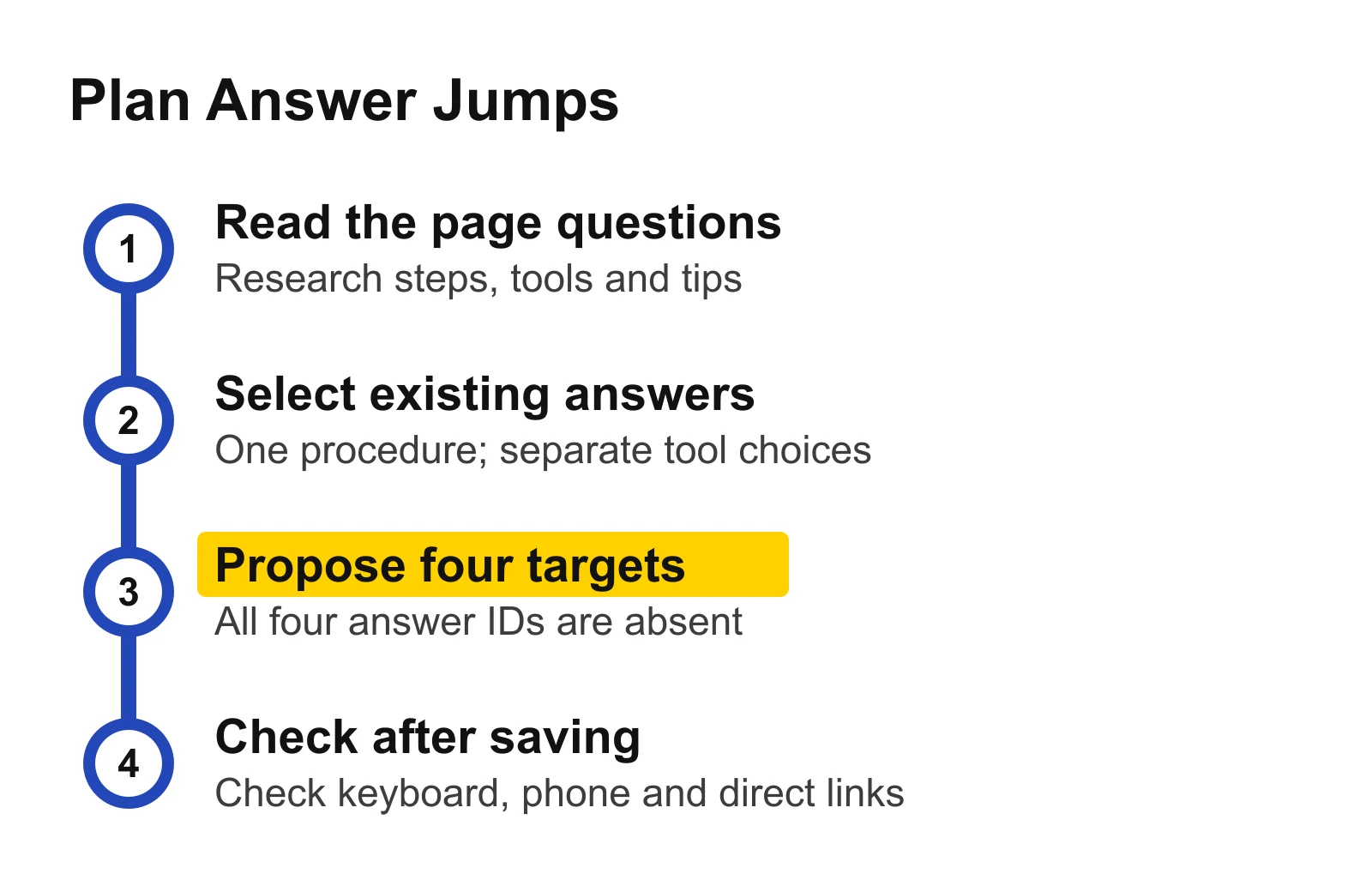
Read the existing answers before proposing section targets. The final stage is a check to perform after adding the links; none of the proposed Productive Blogging jumps has been installed or tested.
Separate Existing Controls From Proposed Jumps
Inspect the saved HTML before calling a target ready. In the October 8 Productive Blogging page, main and comments each occur once as IDs. Our four proposed answer IDs each occur zero times, and the selected answer headings have no ID of their own.
That gives the worksheet two different states. The main-content and comments controls have existing static targets. The answer entries have a section selected and a target proposed, with implementation still outstanding. A fragment written in your notes becomes a working jump only after the matching target is added and the saved page is checked.
Download the filled jump-target map. It keeps the source query, actual section, proposed label, target ID and verification state together. The omitted WordPress wording and comments decision remain in the file too, so later edits do not quietly turn them into unsupported answer entries.
On your own page, record existing identifiers before choosing new ones. Keep an existing useful target when it leads to the same answer. If a target is absent, mark it as proposed rather than testing a URL that you already know has nowhere specific to land.
Add the Links, Then Check the Saved Page
Implement the plan only on a page you control. If your editor supports section anchors, assign the chosen value to the corresponding heading or answer block, then link the contents label to its fragment. Otherwise, give the map to whoever maintains the page and ask them to add the matching targets and ordinary links.
For the proposed free-options entry, the link would use href="#free-research-options". Its destination needs the same identifier without the hash: free-research-options. Preserve the existing section level and answer text while adding navigation; the plan does not require rewriting the article's heading structure.
After saving, open the actual page and check each entry:
Select the label and confirm that the intended answer appears, with its heading visible rather than covered by a fixed header.
Use the keyboard to reach and activate each link. Check that you can locate the destination and continue navigating; ask the site maintainer to investigate confusing scrolling or focus behavior.
Open a copied page URL with the fragment attached, then reload it. Confirm that the same answer is reached from that direct address.
View the list on a phone. Labels should wrap cleanly, remain distinguishable and be usable without sideways scrolling.
Recheck the saved identifiers. Each selected ID should exist once, and every link should match its intended target exactly.
Record the date and result beside each entry in the map. Keep an entry unfinished until both the saved target and the browser behavior have been checked. An editor preview alone would miss a change introduced by the published template or navigation header.
Maintain the Map When an Answer Changes
Recheck a jump whenever its answer section moves, is renamed or is removed. If the answer remains the same, keeping its target stable helps preserve the direct address even when the visible heading wording changes. Update the label when it no longer describes what the section provides.
If two sections are combined, choose the destination that now answers the question and revise the contents list accordingly. Do not leave both old entries pointing to a vague catch-all section. If an answer disappears entirely, remove or replace its entry rather than retaining a link whose promise the page no longer fulfills.
Start your own plan with Page analysis: enter one existing article URL, choose its market, and select a recorded question whose answer you can locate. Complete that query-to-answer row before expanding the list.
Use Find Page Keywords when you need the wider page-query workflow. Choose a Primary Keyword for an Existing Page helps with the page's overall focus; Update an Existing Blog Post covers a broader content update. For routes between separate pages, read Internal Links for SEO.