- Informational
SearchCub SERP Analysis: Turn Results Into a Page Brief
Editorial responsibility: SearchCub
Use SearchCub’s SERP overview to see what ranks, identify the answer readers need, and outline an article that delivers it. A SERP is a search engine results page. Follow these six steps to turn its pages and questions into a writing brief.
1. Open a keyword’s analysis
In SearchCub, choose Keyword, enter a phrase, select your target Region, and press Search keywords. Click the keyword text in the results to open its analysis. The checkbox selects rows for saving or downloading; it does not open the analysis.
Start with a phrase you could realistically cover. If you need a shortlist first, follow keyword research for bloggers.
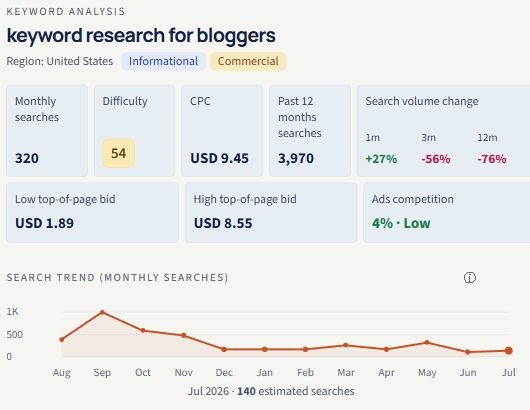
Check the exact phrase and market before reading its estimates.
Find SERP overview and note its displayed region and device. Worldwide keyword estimates can accompany a country-specific SERP. Keep the displayed context in your notes; reopened results may come from a saved or cached snapshot.
2. Read the organic results and search features
Under Top search results for…, scan the titles, URLs and descriptions. The # column shows organic position: a page’s place among the returned unpaid results. A feature’s Result block number counts its place in the search layout, so the two numbers can differ.
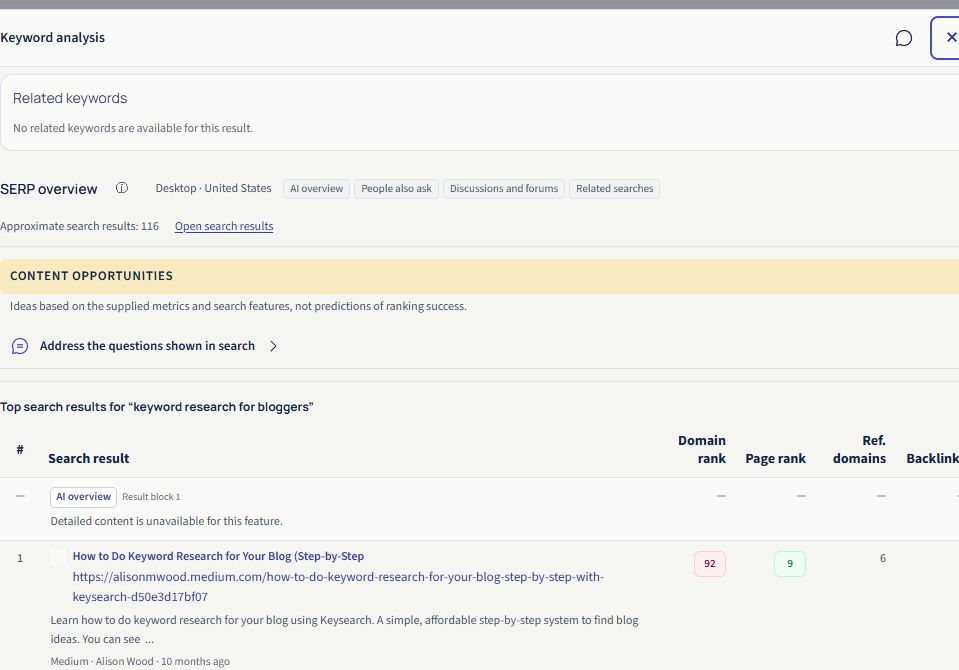
Use the page links to inspect results; organic positions and feature block numbers describe different sequences.
People also ask (PAA) is a block of related questions. An AI overview is an AI-generated summary in search. SearchCub may identify either feature without receiving its full contents. If it says Detailed content is unavailable, leave that detail unverified. Check any Suggested spelling correction before interpreting the result.
No organic results means this response gives you no pages to compare. For a failed request, use Retry SERP when offered. If only some results are available, keep the comparison provisional.
3. Open the pages and compare what they help readers do
Open three relevant organic titles or URLs as a starting point. Read the pages, then record their format, the task they help someone complete, and the evidence or tools they provide. A search description alone cannot establish what a page leaves out.
In our United States review on 13 September 2026, keyword research for bloggers returned both guides and tool pages. We opened Productive Blogging’s tutorial, HostPapa’s blog-post guide and Semrush’s keyword tool page. That mix supported a worked tutorial with a way to start researching.
For your own phrase, finish this sentence: “The reader needs to ___, and my page will help by ___.” If you cannot offer a useful answer, narrow the topic or review another candidate.
Domain rank and Page rank are link-based scores. Use them to compare the strength of competing domains and pages; they are separate from a result’s position. Blank values mean the score is unavailable.
4. Expand a content opportunity
Open a card under Content opportunities and read its Evidence and suggested action. These suggestions draw on supplied metrics and search features; they have not assessed your draft.
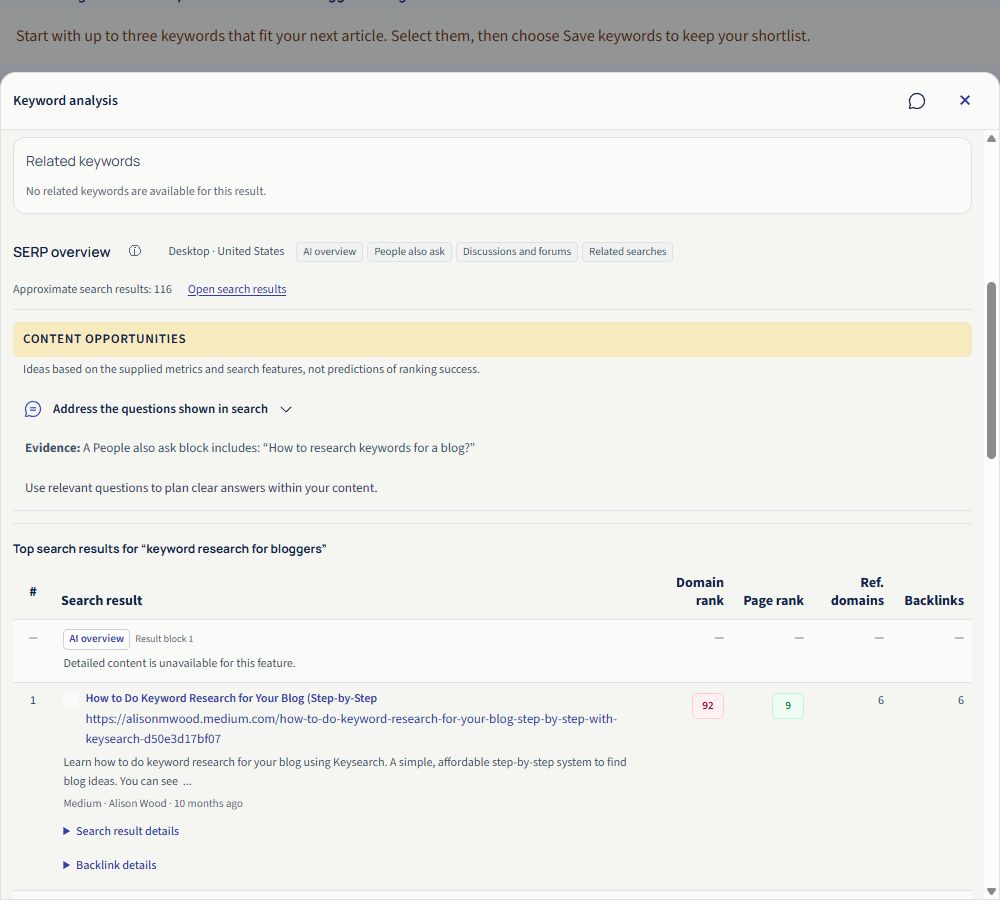
Read the evidence before deciding whether the suggestion belongs in your article.
Our blogger result included Address the questions shown in search, citing “How to research keywords for a blog?” That is a useful check on a tutorial: does it actually show someone how to choose a post? It does not require a separate FAQ for every related question.
Apply the same judgment to other cards. A video signal may justify demonstrating a difficult step; a low-difficulty estimate still needs a page review. If no opportunities appear, continue with the pages you inspected.
5. Write a brief you can draft from
Download the page-brief template and fill it before writing. For our blogger query, a practical brief looks like this:
Field | Decision |
|---|---|
Reader’s task | Choose the next blog post and explain the choice. |
Page promise | Turn a broad topic into one article worth writing. |
Format | Worked tutorial with a filled shortlist and reusable CSV. |
Evidence to contribute | Actual candidates, inspected pages and reasons for choosing or rejecting each. |
Essential sections | Choose a seed; compare candidates; inspect results; choose a page; complete the brief. |
Research context | Exact phrase; Desktop · United States; reviewed 13 September 2026; URLs opened. |
Add your decision—write now, narrow the phrase, update an existing page, or hold—and any unresolved checks. Make sure an existing page does not already serve the same task.
6. Save the candidates and keep the brief alongside them
Return to the keyword list; on a phone, use Back to keyword list. Check the candidates and choose Save keywords, following the account prompt if shown. For a new list, enter its name, choose Create list, then Add selected keywords. Creating the list alone leaves it empty.
Use Download for loaded or selected rows in CSV or Excel format. Selected-row options appear after you check a keyword. This exports keyword data, not the full SERP or your brief; missing estimates exported as blank fields in our checked CSV. Keep the inspected URLs and your decision in the separate brief.
If restored public research disables saving, its notice asks you to search with your account first. Preserve your notes and check your allowance before doing so.
Open SearchCub and inspect one candidate. Finish with a page promise, supporting evidence and a clear next action.